How to Scan an Image and Convert It to Editable Text in 2026

scan image to text
You’ve scanned a printed letter, photographed a textbook page, or saved an old document as an image. Now you need to change a few words or copy a paragraph, but nothing happens when you try to select the text.That’s because a scanned image is still a picture, even when it contains hundreds of clearly printed words.

The solution is to scan the image to text using Optical Character Recognition (OCR). It turns the words inside a scan into editable text without making you type the entire document again.

Quick Answer | How to Scan an Image to Text

To scan an image to text, capture a clear picture of your document, upload it to an OCR scanner such as OCREditor, and let the tool recognize the words. Review the extracted text, then copy it into Word or save it as a DOC or TXT file.

  1. Scan: Take a clear photo or create a document scan.
  2. Convert: Upload the image and run OCR recognition.
  3. Edit: Correct, copy, or download the extracted text.

Works best with: Printed pages, letters, book chapters, receipts, invoices, and clear document scans.

Open the Online OCR Scanner →

How to Scan an Image and Convert It to Editable Text

You don’t need an expensive flatbed scanner to digitize a page. A smartphone camera can create a usable image, while an online OCR tool handles the text extraction.

01. Scan ImagePhone camera or scanner
02. Run OCRRecognize printed words
03. Edit TextCopy, DOC, TXT, PDF

Step 1: Scan Your Document with a Phone or Scanner

Start by capturing the page you want to convert.

Using a phone: Place the document on a flat surface with good lighting. Open your camera or a document-scanning feature, hold the phone directly above the page, and capture the complete text.

Many smartphones also offer document scanning through built-in apps. These features can help crop page edges and correct perspective.

Using a desktop scanner: Place the document flat on the scanner glass and save a sharp image. For ordinary printed pages, scanning at around 300 DPI is a useful starting point.

If you already have a JPG or PNG scan saved on your computer, skip this step.

Scanning tip: Don’t worry about making the document look beautiful. Your priority is readable letters, straight lines, and complete words. Heavy filters can sometimes remove thin characters.

Step 2: Upload Your Scanned Image to OCREditor

Open the OCREditor online text scanner in your browser.
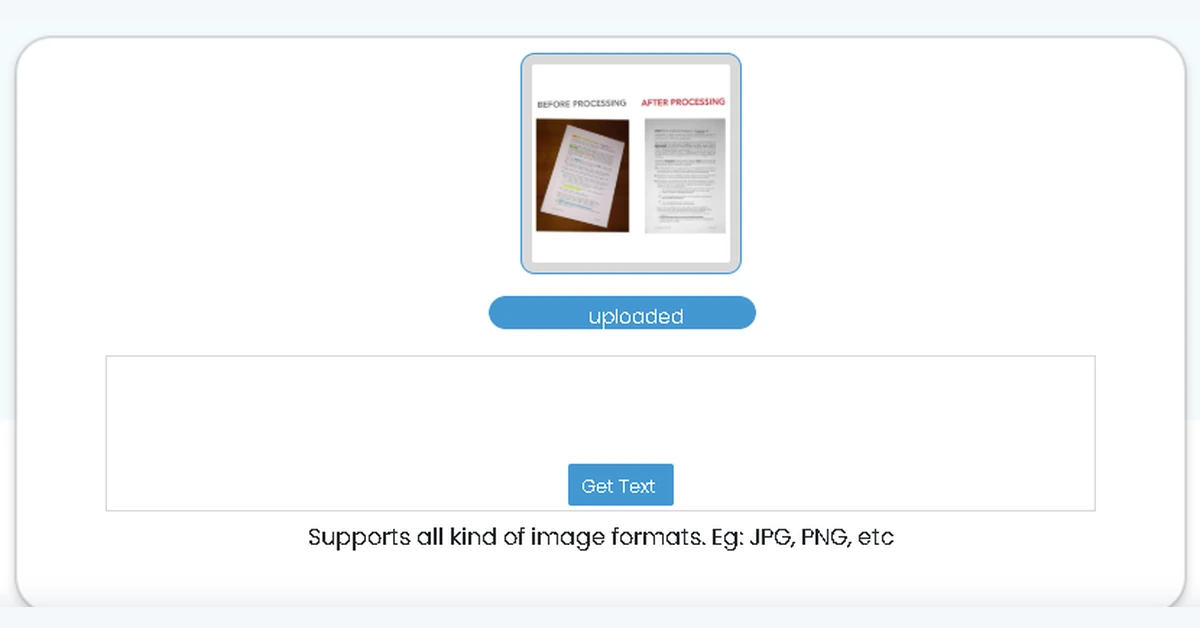
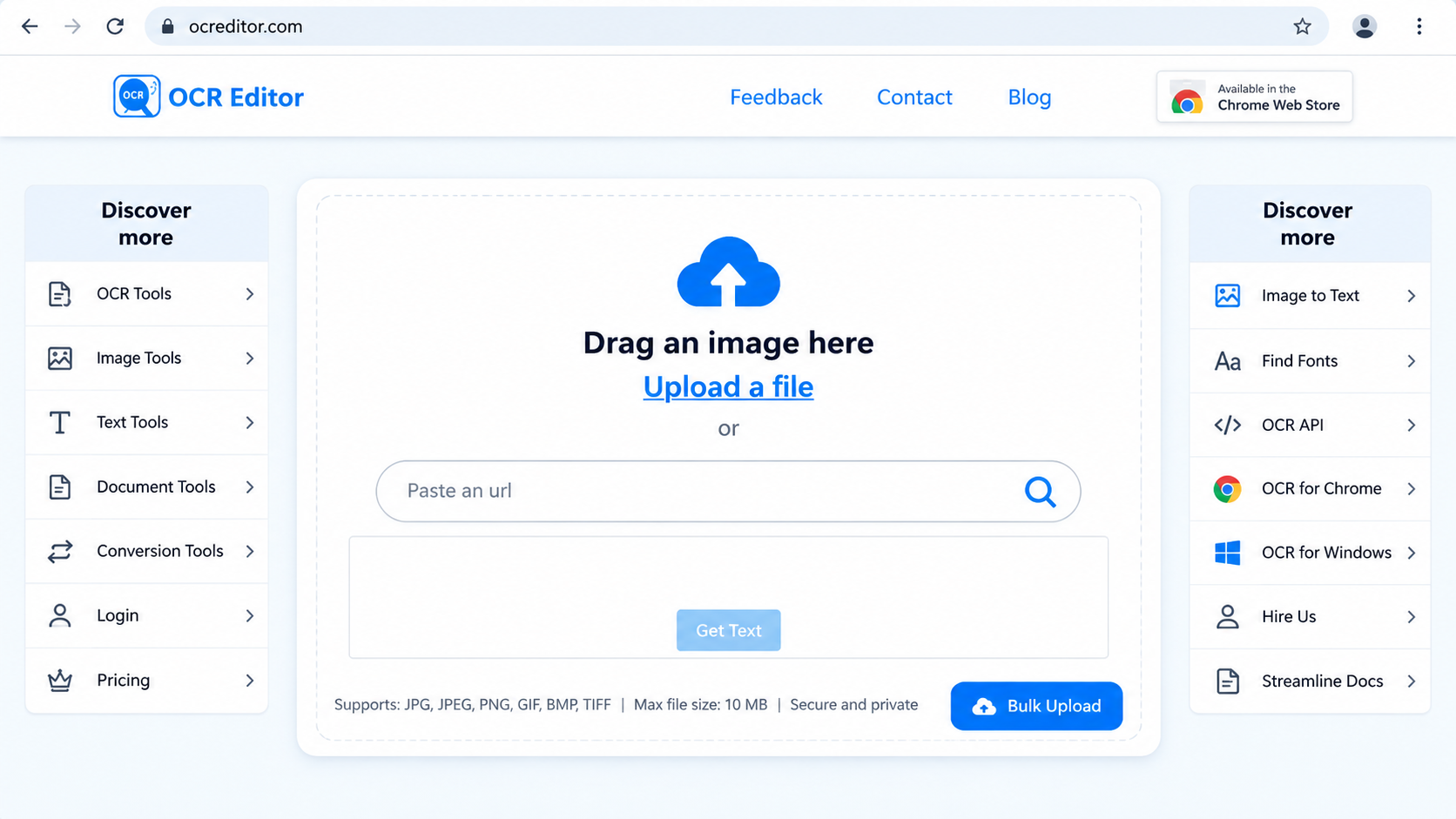
Use the image upload option to select your scanned document. The website lists JPG, JPEG, and PNG as supported formats.

Once you submit the image, the OCR process analyzes the visible characters and converts the recognized content into digital text.

For example, imagine scanning a printed notice that reads:

Original scanned image contains:

“The training session will begin at 10:30 AM. Please bring your registration confirmation.”

After text recognition:

The training session will begin at 10:30 AM. Please bring your registration confirmation.

The sentence looks familiar, but it is no longer trapped inside image pixels. You can now select and edit the recognized words.

This is the important difference between simply scanning a document and converting that scan into text.

Step 3: Review, Edit, and Save Your Text

After OCR finishes, compare the extracted text with your original document.

Correct any misspelled names, unusual characters, missing punctuation, or unwanted line breaks.

OCREditor provides options for copying, editing, and saving extracted text. Choose the format that matches your next task:

  • Copy to clipboard: Paste the text into email, notes, or a browser form.
  • DOC: Continue editing in a compatible word processor.
  • TXT: Save a lightweight plain-text copy.
  • PDF: Keep a shareable document version.

If your goal is to rewrite a paragraph, DOC or copied text is usually more convenient than a fixed-layout document.

OCR extracts written content, but it may not recreate the original fonts, tables, signatures, or page design perfectly.

How to Scan a Document to Text on Android and iPhone

Your phone can handle the image-capturing part of the process. The basic workflow is similar on Android and iPhone, although the scanning controls depend on your device and software version.

On Android

  1. Open a document-scanning feature, such as the scanner available in supported versions of Google Drive.
  2. Point your camera at the printed page and capture it.
  3. Correct the page boundaries and rotate the image if needed.
  4. Save or share the scan in an image format supported by your OCR tool.
  5. Open OCREditor in your browser and upload the image.

If your scanning app saves only PDF, export a page as JPG or PNG when available, or use a suitable PDF text-extraction workflow.

On iPhone

  1. Open the Notes or Files app and use its document-scanning option, where available.
  2. Capture the page and adjust its edges.
  3. Save the scan and prepare a JPG or PNG version if needed.
  4. Open OCREditor through your browser and select the image.
  5. Review and copy the recognized text.

For a quick alternative, supported iPhones have Live Text, which can recognize text in certain photos and images without a separate upload.

Which method is better? Built-in text selection is convenient for a short passage. A browser-based OCR workflow can be useful when you want dedicated editing and document export options.

What Is the Difference Between Scanning an Image and OCR?

These two tasks sound similar, but they produce different results.

Image scanning creates a digital picture of a document. OCR scanning recognizes the letters inside that picture and turns them into editable characters.

Feature Normal Image Scan OCR Text Scan
Output Picture of the page Recognized digital text
Copy words Not directly from ordinary image pixels Yes, after recognition
Edit sentences Requires additional processing Yes, in a text editor
Original layout Retained as an image May require reconstruction
Best use Keeping a visual record Reusing or modifying written content

For example, a scanned invoice preserves what the original paper looked like. OCR lets you copy the supplier name, description, or total into a spreadsheet.

Keep the original scan when exact visual appearance matters.

Which Documents Can You Convert Using an OCR Scanner?

Most text-scanning tasks involve ordinary documents rather than complicated technical files. The main difference is how carefully each type needs to be checked.

Document Type What You Can Extract What to Check
Printed Letters Paragraphs, addresses, dates Names and punctuation
Book Pages Notes, references, quotations Words near curved margins
Receipts Merchant names, prices, dates Decimal points and totals
Invoices Descriptions and reference numbers Amounts and column alignment
Application Forms Printed instructions and field labels Checkboxes and filled-in details
Handwritten Notes Legible handwritten words Recognition may vary considerably

Handwriting deserves extra attention. Neatly written notes may be recognized, but joined-up handwriting, faint pencil marks, and unusual lettering can lead to errors.

If you mainly work with photographs and screenshots rather than paper documents, our guide on extracting text from a picture covers that workflow in more detail.

How to Make a Scanned Image Easier for OCR to Read

A good scan makes the whole process easier. Before uploading, spend a moment checking these five things.
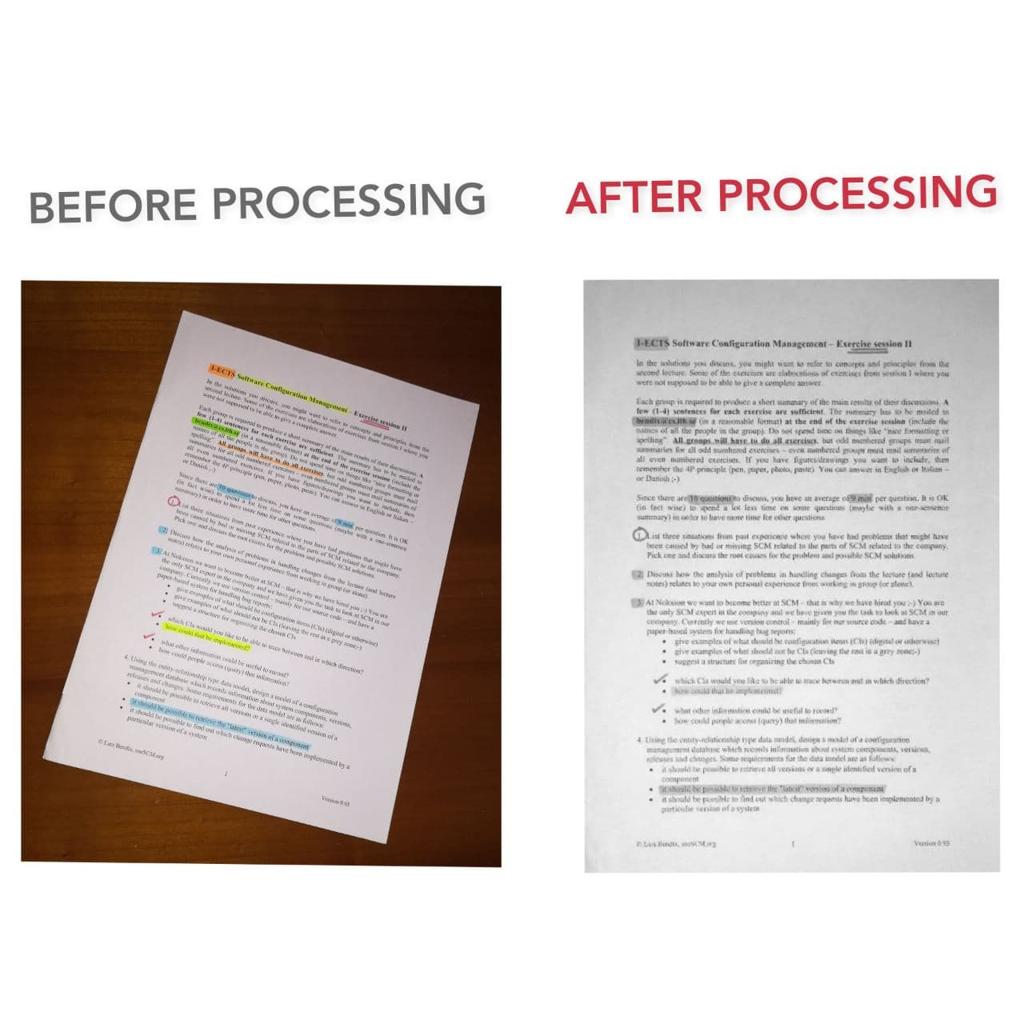
1. Keep the Entire Page in Focus

A photo can look sharp in the middle while the corners remain blurry. Tap the text area to focus, keep your hands steady, and retake the picture if the smaller letters are difficult to read.

2. Avoid Shadows and Reflections

Overhead light can cast a shadow from your phone onto the paper. Glossy documents may also reflect bright lamps. Move the document or change the lighting until the text is evenly visible.

3. Straighten the Page

Rotate the image if the document is tilted. For photographs taken at an angle, use perspective correction when available.

Straight lines make it easier for recognition software to follow the intended reading order.

4. Keep a Suitable Resolution

Don’t shrink a readable scan into a tiny image just to reduce its file size. For scanning printed documents, around 300 DPI is a useful target.

Higher resolution is not always necessary. What matters most is whether individual letters remain clear.

5. Check the Text Before Saving

Pay special attention to characters that look similar, including 0 and O, 1 and I, or 5 and S.

This is particularly important for prices, phone numbers, reference codes, and dates.

Quick Scan Quality Checklist

  • Are all four page edges visible?
  • Can you read the smallest printed words?
  • Is the page straight and evenly lit?
  • Are there shadows across important lines?
  • Have you kept the original for verification?

Common Image OCR Scan Problems and Their Fixes

If your first attempt produces an incomplete result, you often don’t need a different tool. Try correcting the source image.

The OCR Result Contains Random Symbols

This often happens with blurred characters, decorative backgrounds, or low-resolution scans. Upload a sharper copy, improve contrast, or crop the relevant text area.

Some Lines Are Missing

Check whether the page edges were accidentally cropped or hidden by shadows. Retake the scan with a little space around the full text block.

Columns Are Reading in the Wrong Order

Multi-column pages can confuse recognition order. Crop and process each column separately, then combine the results in your editor.

The Converted Word Document Looks Different

OCR primarily recognizes characters. Fonts, spacing, tables, and page layout may not carry over exactly.

Fix the formatting in Word or another document editor. For complex paperwork, use the original scanned image as your layout reference.

When Should You Use a Text Scanner Online?

An online OCR scanner is useful when you need to reuse information instead of simply keeping a photograph of it.

  • Students: Convert photographed textbook chapters into searchable study notes.
  • Office workers: Edit instructions or text from printed notices.
  • Researchers: Digitize quotations and references while verifying the source.
  • Business owners: Transfer printed product information into digital records.
  • Content teams: Recover text from old brochures and presentation material they have permission to reuse.

OCREditor also offers a browser extension for working with text visible on webpages and videos. Its separate guide on copying text from YouTube videos explains that use case.

Privacy reminder: Before uploading personal records, medical documents, contracts, or confidential invoices, review the service’s current privacy policy and your organization’s data-handling requirements.

Frequently Asked Questions

1. How can I scan an image to text for free?

Take a clear photo or scan of your document, then upload the JPG or PNG image to an online OCR tool such as OCREditor. The tool recognizes the visible words and makes them available for copying or editing. Check the service’s current usage limits.

2. Can I scan a document and edit the text in Word?

Yes. Use OCR to recognize the words inside the scanned image, then download a DOC file or paste the result into Microsoft Word. You can edit the text afterward, although complex formatting may need manual correction.

3. Can I scan an image to text using my phone?

Yes. Take a clear picture using your phone’s camera or document-scanning feature, then upload a supported image format to an online OCR scanner. Android and iPhone also offer built-in scanning or text-recognition features on supported devices.

4. Why is my scanned text not accurate?

OCR mistakes commonly come from blurry letters, shadows, tilted pages, handwriting, or complicated layouts. Try a clearer scan, correct the image angle, improve the lighting, and check the recognized words against the original document.

Final Thoughts

Scanning a document is only the first step. If you need to change its words, copy a paragraph, or create an editable file, OCR is what makes that possible.

Start with a clear scan, convert it into text, and check the result before using it in an important document.

Ready to turn your scan into editable text?

Upload a JPG or PNG document to OCREditor, recognize the words, and copy or export the result without retyping the whole page.

Scan Image to Text with OCREditor →

How to Extract Text from a Picture in 3 Easy Steps in 2026

How to Extract Text from a Picture

QUICK ANSWER

To extract text from a picture, upload a clear image to an OCR tool such as OCREditor, let it recognize the words, then review and copy the result. You can turn screenshots, book photos and scanned pages into editable text without manually retyping everything.

  1. Upload your JPG or PNG picture.
  2. Recognize the text using OCR.
  3. Review and copy the extracted words.

Found an important paragraph in a screenshot, a textbook photo or a scanned document? You could type it out word by word. But if you’re working with an entire page, that gets tiring pretty quickly.

That’s where Optical Character Recognition (OCR) helps. It reads text inside an image and converts it into characters you can copy, edit and save.

How to Extract Text from a Picture Using OCREditor

You don’t need to recreate the original document. With an online image-to-text converter, the process involves three straightforward steps.

THE 3-STEP WORKFLOW

01 — Upload Picture

Choose a clear JPG, JPEG or PNG image.

↓

02 — Recognize Text

OCR identifies readable characters in the image.

↓

03 — Copy or Export

Review the output and save it in a suitable format.

Step 1: Upload Your Picture

Open the OCREditor image-to-text converter in your browser and choose the picture you want to process.

Common examples include:

  • Screenshots of webpages, messages or instructions.
  • Photographs of textbook pages and printed notes.
  • Scanned letters, invoices or receipts.
  • Pictures of presentation slides and infographics.

Let’s say you’ve taken a photo of a paragraph from a reference book. Instead of typing the whole passage into your notes, upload the photo and let the OCR tool recognize the words.

Practical tip: Use the original image rather than a compressed copy. The sharper the letters, the easier they are for OCR software to recognize.

Step 2: Let OCR Recognize the Text

Once you upload the picture, OCREditor identifies the visible text and converts it into editable characters. The result can then be reviewed and copied into your preferred document or notes app.

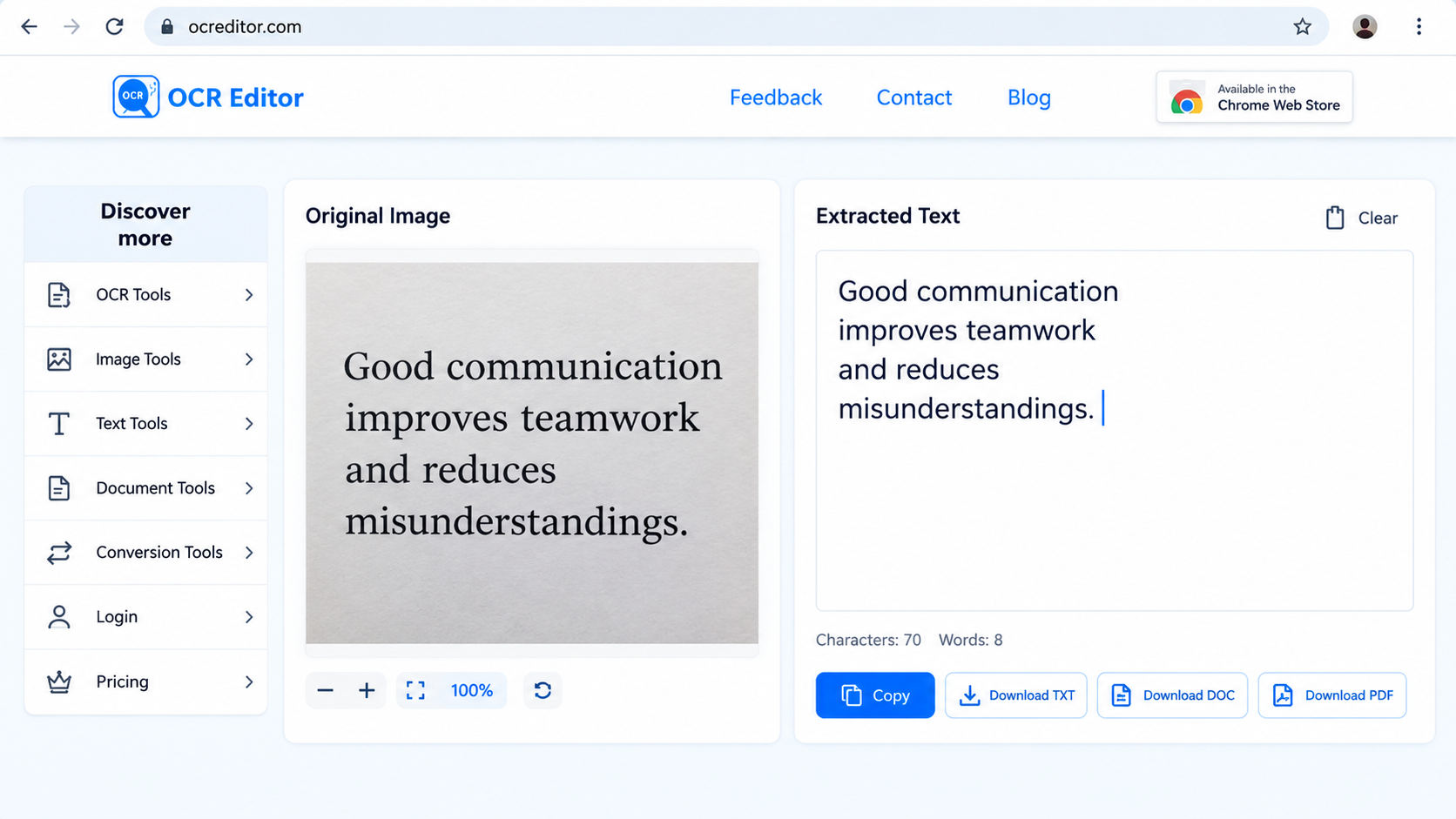
Here’s a simple example.

ORIGINAL IMAGE TEXT

“Good communication improves teamwork and reduces misunderstandings.”

EXTRACTED TEXT

Good communication improves teamwork and reduces misunderstandings.

Illustrative example showing how a sentence becomes editable text.

The words look the same, but the result is now text rather than pixels inside a picture.

Clear printed text is generally easier to recognize than decorative lettering, handwriting or text on curved pages. Complex layouts may also require extra editing.

Step 3: Review, Edit and Copy the Extracted Text

Once OCR finishes, compare the extracted result with your original picture. Even a clear image can produce an occasional mistake.

Depending on the available OCREditor options, you can copy the output, correct it or save it for later use.

  • Copy: Paste text into Google Docs, Microsoft Word, Notion or email.
  • Edit: Correct spelling, punctuation and unwanted line breaks.
  • TXT: Save plain text for notes and records.
  • DOC: Continue editing the content in a document editor.
  • PDF: Keep a shareable version for reference.

Check names, numbers and technical terms before saving. For example, OCR might mistake the number 0 for the letter O, which matters when copying invoice numbers or product codes.

What Is OCR and How Does It Extract Text from Images?

OCR stands for Optical Character Recognition. It is technology that recognizes text inside images and converts it into machine-readable characters.

A photograph stores everything as pixels, including the words printed on a page. That’s why you normally can’t select a sentence directly from an ordinary image.

OCR software analyzes the picture, locates areas containing text, identifies characters and reconstructs them into readable words and lines.

For example, a photographed book page might contain several paragraphs. OCR can turn those paragraphs into text you can edit in a document, search or reuse in your notes.

Its accuracy depends on the original image. Sharpness, lighting, language, font style and page layout can all affect the output.

Best Image Types for Accurate Text Extraction

Some pictures are naturally easier to process than others. A clean screenshot usually produces a more reliable result than a dark photograph of a curved book page.

Here’s how to prepare different image types.

Image Type Common Use Practical Tip
Screenshots Messages, error logs, website text Keep the original resolution. PNG often preserves sharp text well.
Book Photos Study notes and quotations Flatten the page and avoid shadows near the spine.
Receipts & Invoices Purchase details and expenses Double-check dates, prices and reference numbers.
Scanned Documents Letters, forms and records Use a straight, sharp scan; around 300 DPI is a useful target.
Whiteboard Notes Classroom and meeting notes Improve lighting and carefully review handwritten words.

If you regularly extract information from screenshots, work with the original capture whenever possible. Images forwarded through messaging apps may have lost some of their sharpness.

For more examples involving printed documents, explore OCREditor’s OCR guides.

How to Improve OCR Accuracy for Blurry or Slanted Photos

OCR can still work with an imperfect picture, but a few adjustments before uploading often make a noticeable difference.

Try these five improvements.

1. Straighten the Picture

When a book page is photographed from an angle, the lettering can appear slanted or compressed. Use your phone’s photo editor to rotate the image or correct its perspective.

Position the camera directly above the page whenever possible. Keeping the text lines horizontal helps recognition software read them in the correct order.

2. Improve Brightness and Contrast

Dim lighting can cause text to blend into the page. Increase brightness slightly and adjust the contrast until letters stand out more clearly.

Don’t overdo it. Excessive brightness can erase thin strokes and punctuation marks.

3. Crop Unnecessary Backgrounds

Remove surrounding objects such as desk surfaces, fingers or decorative elements that aren’t part of the text.

Keep the complete paragraph visible. Cropping too closely may cut off characters at the beginning or end of a line.

4. Avoid Compressed Copies

Some messaging apps and social platforms reduce image quality. Small letters may become blurred or distorted after compression.

Use the original screenshot or camera photo when available. If you’re photographing a printed document, tap the text area to focus before taking the picture.

5. Check Similar-Looking Characters

Some characters look nearly identical, especially in small fonts or low-resolution pictures.

  • Number 1, uppercase I and lowercase l.
  • Number 0 and uppercase O.
  • Number 5 and uppercase S.
  • Comma (,) and full stop (.).

Pay special attention when the extracted text includes invoice totals, dates, model numbers or names.

Important: No OCR tool guarantees perfect accuracy with every image. If words are unreadable even after editing, taking a clearer photo is usually better than trying to guess what they say.

Online OCR vs. Manual Typing: Which Is Better?

Manual typing is fine when you need a single word or short sentence. But copying a full page can be time-consuming, especially if the source contains numbers or technical terms.

Online OCR handles the initial recognition for you. The trade-off is that you may still need to review formatting and correct occasional mistakes.

Feature Manual Typing Online OCR
Process Retype every word Upload an image and recognize text
Long Passages Can take considerable time Usually more convenient
Accuracy Depends on the person typing Depends on image quality and recognition
Formatting Created manually May need correction after extraction
Best For Short phrases and unclear handwriting Screenshots, printed pages and scans

Which should you choose? If you have several readable sentences in a picture, OCR is generally the easier starting point. For one or two unclear words, typing them manually may be faster.

Common OCR Problems and How to Fix Them

Sometimes the extracted result contains missing words, unusual symbols or text in the wrong order. These problems often relate to the original picture or its layout.

Missing Words Near the Page Edges

Cause: The page is curved, partly hidden by a shadow or cropped too closely.

Fix: Flatten the page, improve the lighting and photograph the full text area again.

Random Symbols Instead of Letters

Cause: Low resolution, decorative fonts, watermarks or patterned backgrounds may confuse character recognition.

Fix: Try a sharper image, improve contrast and crop the relevant paragraph.

Broken Lines Inside Paragraphs

Cause: OCR may preserve line breaks from the original image, even when those breaks aren’t needed in the editable text.

Fix: Remove unnecessary line breaks in the editor before copying the content into your document.

Text from Two Columns Is Mixed Together

Cause: Columns, captions and sidebars may not be recognized in the correct reading order.

Fix: Crop the left column and process it first. Then repeat with the right column.

For tables, check that labels and numbers still belong to the correct rows. Text recognition doesn’t always preserve the original table structure.

When Is an Image-to-Text Converter Most Useful?

An image-to-text converter is useful whenever you need to reuse information that’s trapped inside a picture.

  • Students: Turn textbook pages and lecture screenshots into editable revision notes.
  • Office professionals: Copy information from scanned letters, instructions and meeting materials.
  • Researchers: Extract quotations from photographed pages while checking the original source for accuracy.
  • Content creators: Recover their own text from presentation slides and social media graphics.
  • Small businesses: Digitize information from product sheets, receipts and routine paperwork.

Privacy reminder: Before uploading confidential documents, identification details, invoices or personal records, review the tool’s privacy policy and your organization’s data-handling requirements.

Pictures aren’t the only files that can contain text you can’t easily select. Scanned PDFs can present similar problems. If you’re working with those files, this guide explains how to copy text from PDF documents and what to consider when extracting the content.

Frequently Asked Questions

1. How can I extract text from a picture for free?

You can use an online OCR tool such as OCREditor to upload a picture and recognize its text. Review the result before copying or saving it. Check the tool’s current pricing and usage limits for any restrictions.

2. Can I copy text directly from a screenshot?

Yes. Save the screenshot and process it through an OCR tool. The recognized words can then be copied into an email, document or note-taking application. Some devices also have built-in text recognition features.

3. Does OCR work on blurry or poorly lit pictures?

It may work if the text is still readable, but results depend on image quality. Straightening the photo, improving contrast and using the sharpest available original can help. Severely blurred pictures may require a new photo.

4. Can I convert a picture into an editable Word document?

Yes. Once the text has been extracted, copy it into Microsoft Word or Google Docs. If your OCR tool offers a DOC export option, you can use that instead. Always review formatting and missing words before finalizing the document.

Final Thoughts

You don’t need to retype an entire page just because the words appear inside a picture.

With OCR, you can convert screenshots, photographs and scanned pages into editable text in a few straightforward steps: upload the image, recognize the words and check the result.

For the best outcome, start with a clear picture and review the extracted text before using it in an important document.

ONLINE IMAGE-TO-TEXT TOOL

Have a Picture You Need to Convert?

Try OCREditor to recognize, review and copy text from your images without typing everything manually.


Extract Text from Your Picture →